AutoSelect
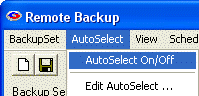 AutoSelect is one of the most powerful features in this software. It allows you to select or exclude files for backup depending on which software application they belong to. For example, with one simple selection you can back up all Microsoft Word documents throughout your drive, regardless what folder they are in.
In addition to backing up existing files, AutoSelect picks up files that are added later and automatically adds them to your backups.
There are two ways to use AutoSelect. Both ways require AutoSelect to be turned ON.
With AutoSelect turned ON you can edit the file selections by picking Edit Autoselect.
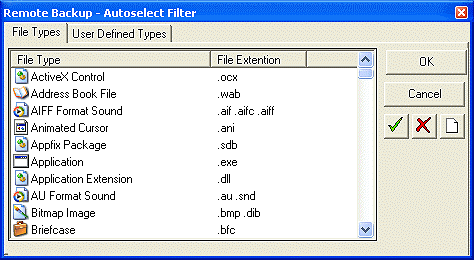
This menu lists all the file types on your computer, in all folders. Right-click on any file type to pick from a menu that lets you include, exclude, or ignore files. You can also highlight a file or group of file types and pick one of the buttons on the right of the screen.
Using the User Defined tab you can add your own file types. There are still many software programs in use which predate Microsoft Windows, and so they might not appear on the AutoSelect's main File Types tab. To add your own file types, click the ADD button.
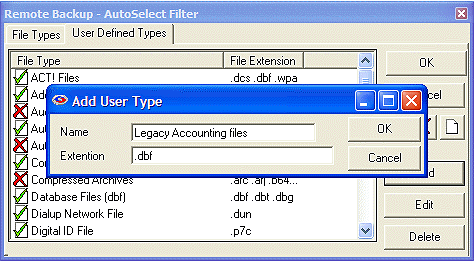
After adding your new file types you can then select them to include, exclude, or ignore, the same as with all the other file selections.
AutoSelect with Right-Click
Many people find the Right-Click method of AutoSelect easier to work with.
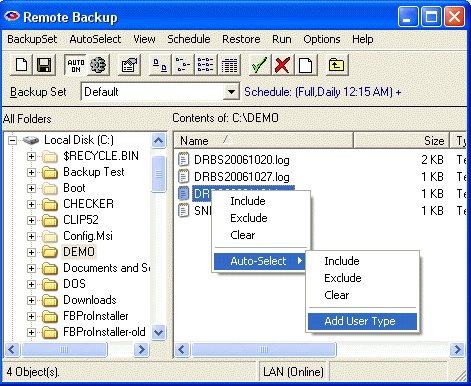
With AutoSelect ON, right-click on any file in the right pane of the normal file selection screen. You will see an AutoSelect menu. Select Include, Exclude, or Clear. You can add the file type you selected to the AutoSelect system and back up all similar file types. If the file type you have selected is already in the AutoSelect list, you can Edit or Delete it here.
More help for selecting files can be found in File Selection Tips and Tricks.