 Since these "perfect" encryption keys are hard to remember, it is recommended that they be recorded on paper and kept in a safe place.
It is usually advisable to change your Encryption Key periodically. Your Encryption Key is literally the key to your data. It is used to lock up your data so nobody else can see it, and like a regular key, if you forget it, you may not be able to recover your data.
When you change your Encryption Key, write it down in a safe place. If you forget it, you may not be able to recover your data.
There are two ways to change your Encryption Key. The first is to select a word or phrase that you can remember. For rules on selecting your encryption key, see the section on Selecting Your Encryption Key.
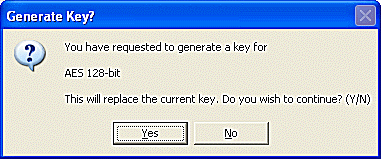
The second way is to let Remote Backup generate one for you.
Remote Backup has a way to automatically generate "statistically perfect" encryption keys - the most secure keys. If you want the very highest security, do not pick your own key. Allow Remote Backup to generate it for you.
The way Remote Backup generates a key depends on which encryption standard you have chosen. All of Remote Backup's encryption standards may not be available in your version of Remote Backup.
If you pick "DES (8.3 Standard)" Remote Backup will generate a 128 bit key, represented as sixteen letters and numbers.
Since these "perfect" encryption keys are hard to remember, it is recommended that they be recorded on paper and kept in a safe place.
Whenever an Encryption Key is changed it is advisable to create a new Key Disk using the Key Disk button.
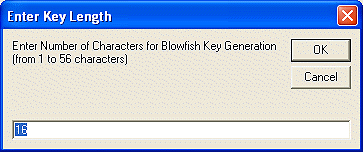
When generating a key for Blowfish encryption, you will see an additional screen asking how long you want the key to be. Blowfish varies from one to 56 characters. A "character" is eight bits. So, Blowfish varies from eight bits (1 x 8) to 448 bits (56 x 8)
When a new key is created you will have the opportunity to print the new key. Print it or write it down and save it in a secure location.
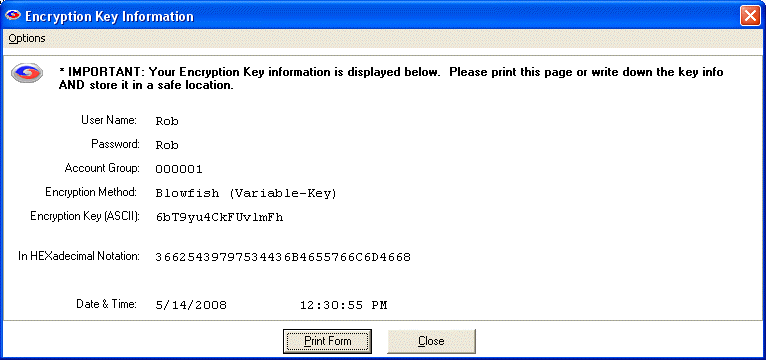
Whenever you change your encryption key or any other setting that is critical in restoring your data, Remote Backup will prompt you with one or more messages indicating an action you should take.
 When prompted to create an updated encryption key file, answer Yes. Remote Backup will place the key recovery files on the device you select.
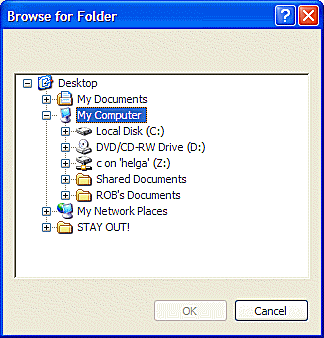
Select a diskette drive or a network drive to store the Key Files away from the computer they protect.
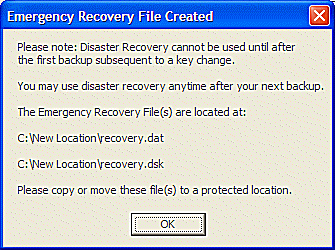
This screen will be displayed, indicating the file name(s) that were created.