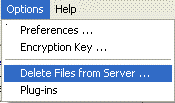
The Delete Files from Server menu choice on the Options menu allows you to delete your backup files from the RBS Server to save space.
Files deleted from the RBS Server cannot be recovered.
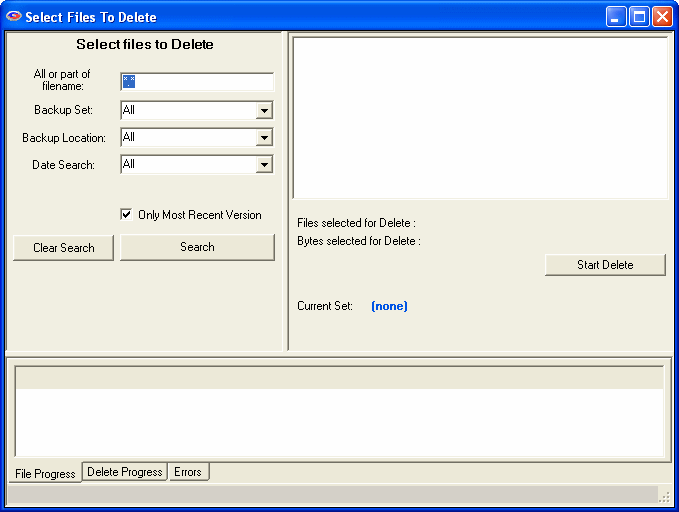
The Delete interface looks like the Restore interface, so be careful.
This is the Delete Files screen. The left pane contains the file selection criteria. The right pane contains the files you have found in the search. Select files to delete in the right pane. The bottom pane shows the progress and results of your delete operation.
Enter any part of the file name or folder name to search for files, or leave this as *.* to search through all files.
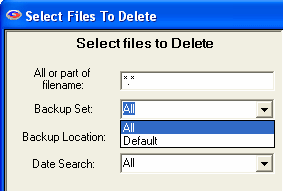
Select which backup set to search though, or select All backup sets.
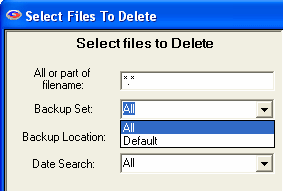
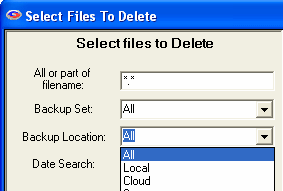
If you have made backups to multiple locations (Local, Cloud, RBS Server) then you can delete from any location individually. Or, you can select All delete from all locations.
Select OnDate, BeforeDate, AfterDate, BetweenDates, or All.
On Date: Selects files backed up on a date.
Before Date: Selects files backed up before a date.
After Date: Selects files backed up after a date.
Between Dates: Selects files backed up between two dates.
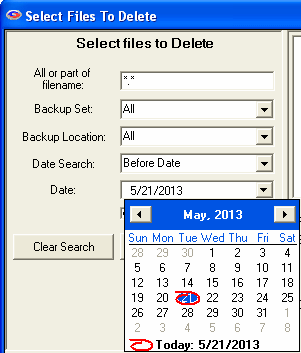
Select the date from a drop-down calendar to use in the search. If you select Between Dates, there will be two Date fields. Note: The calendars will only let you select dates for files that have been backed up.
When you have entered your search criteria, press the Search button. The files found in your search will appear in the right pane. You may now enter other search criteria to find more files, which will be added to the right pane.
To clear your search and start over again, press the Clear Search button.
After you have searched for your files, and have selected the ones you want to delete by checkmarking them in the right pane, press the Start Delete button to delete them.