
If your computer is stolen, if the hard drive crashes (fully or partially), or if your computer is completely destroyed, you will need to use the Disaster Recovery option to re-install the Remote Backup software and recovery your files.
The Disaster Recovery process is mostly automatic, depending on how much information you have from your previous installation of the software.
You can easily recovery your data after a total loss if you know your most recent Username, Password, Encryption Key, and Encryption Method. Even if you don't have all this information, you may still be able to get your data back.
Remote Backup makes it easy to record this information for a later Disaster Recovery if needed. Whenever you change your Encryption Key, Remote Backup will prompt you to create a new Key File and to print all your Key information on your printer.
We strongly recommend that you create a new Key File AND print the Print Key Form, and keep both in a safe place. They are literally the keys to restoring your data.
Whenever you change your encryption key or any other setting that is critical in restoring your data, Remote Backup will prompt you with one or more messages indicating an action you should take.
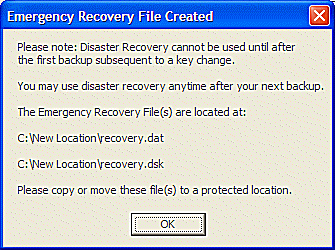
When prompted to create an updated encryption key file, answer Yes. Remote Backup will place the key recovery files on the device you select. Select a diskette drive or a network drive to store the Key Files away from the computer they protect.
This screen will be displayed, indicating the file name(s) that were created.
These are the critical Key Files that you can use to do a full Disaster Recovery. You can also input information directly from the keyboard, copied from the Print Key form.
Performing a Disaster Recovery
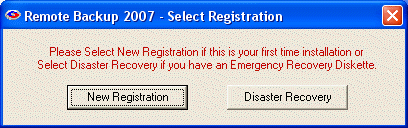
The first thing to do is to re-install Remote Backup. When Remote Backup is installed on a computer that it hasn't been previously installed on, OR on a hard drive that has been damaged and repaired, this prompt will display.
If your are going to perform a Disaster Recovery, select the Disaster Recovery button.
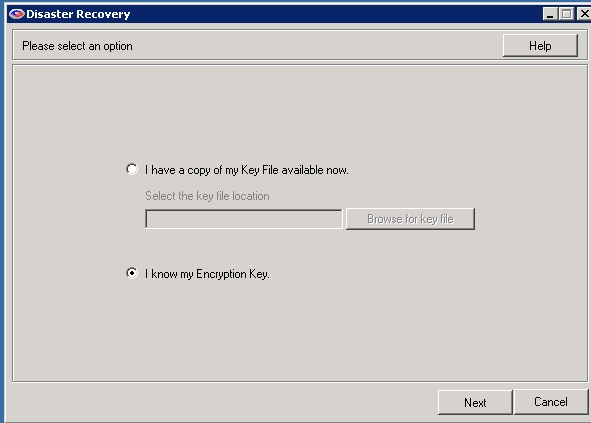
If you have a Key File, answer YES. If you don't have the Key File, skip to What if I Don't Have the Key File? below.
Your Key File(s) were saved from a previous installation of Remote Backup. When you were given an opportunity to save them, you might have saved them to another location on the hard drive, or on a network drive, or on a removable drive.
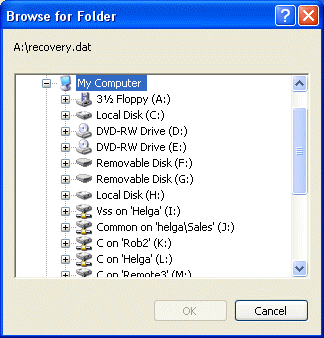
Select the location of the Key File.
The following screen will appear. It will be populated with the information from the Key File. Click NEXT.
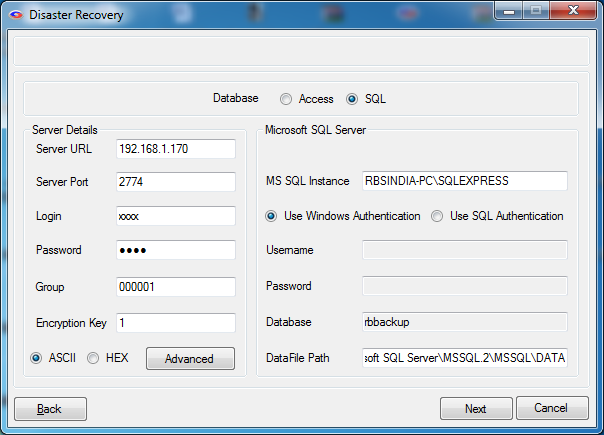
Remote Backup will read the Key Files, then automatically contact the RBS Server and download its latest catalog. It will then set itself up exactly as it was before your computer crash and you will be able to use the Restore Files options to restore your files.
You can still recover your data if you printed the Print Key form from your recently deceased installation of Remote Backup.
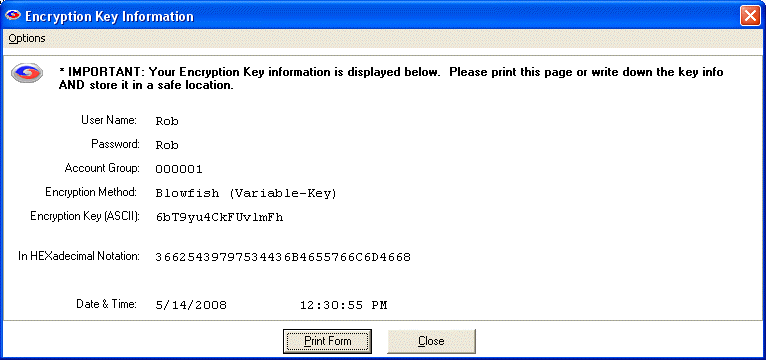
This form contains all the information you will need to recover your last installation of Remote Backup, and then your files.
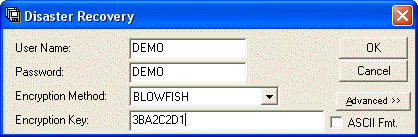
From the printed Print Key form, enter the User Name (be careful - this is case-sensitive) and the Password (also case-sensitive). Select the Encryption Method.
The Encryption Key can be entered in one of two formats: ASCII or Hexadecimal. We recommend entering the Hexadecimal version of the Encryption Key. So, DO NOT checkmark the ASCII Fmt. checkbox.
Enter the Hexadecimal version of the Encryption Key from the Print Key form.
Press the OK button.
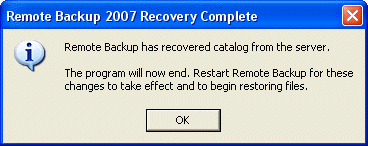
If you entered the correct information, this screen will appear. Your recovery has been successful, and you can now restart Remote Backup and restore your files.
Advanced>> Button The Advanced>> button should only be used on the advise of your Service Provider. It contains advanced features rarely needed by most users.