(For Exchange versions older than 2010 see Exchange pre-2010)
IMPORTANT! Service Pack 1 is required for SBS 2011
Service Pack 2 is required for Exchange 2010
The Remote Backup client includes a built-in agent to backup and restore Exchange Server 2010 and 2013 at the mailbox-level. Users can select individual mailboxes for backup and can optionally select certain folders like Inbox, Contacts, Calendar, etc., inside a mailbox as well.
The Exchange 2010 and 2013 agent use Exchange Cmdlets to export (backup) and import (restore) mailboxes from the Exchange Server.
The first time backup of an Exchange Item (an Item can be an entire Mailbox or an individual folder inside a Mailbox, based on user selection) is a full backup. Thereafter Incremental backups are done based on the last backup timestamp of the Exchange Item.
Point-in-time restores or complete restores of Mailbox or Folder items can be done using the Restore Interface. During a restore of an Exchange 2010 or 2013 Mailbox or Item there is an option to redirect the data to PST file format instead of restoring the data to Exchange Server.
Notes about this release:
- Support for backup/restore of Address Lists and Public Folders is not available with this release. This will part of a future release.
- Selection of individual folders (i.e. Inbox, Contacts, etc) vs entire Mailbox increases processing time, though the size of the backup will be smaller.
- Folder Items (like Junk E-Mail, Deleted Items, etc) can be excluded globally across all mailboxes.
- Registry key override is available to force a Full backup if needed.
- Requires ‘local’ temp space for temporarily copy of Exchange Data during backup and restores.
Exchange Data Selection
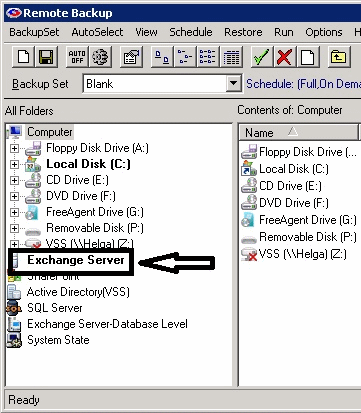
Remote Backup automatically detects Exchange Server and displays it as Exchange Server in the File Selection interface (screen shot of Simple Interface shown below).
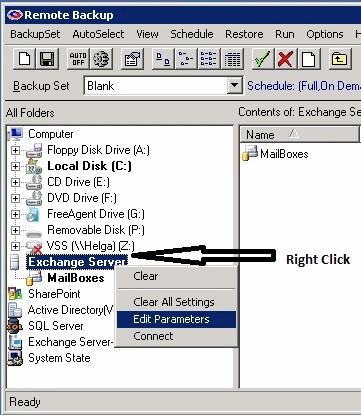
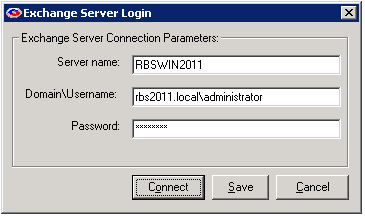
To connect to the Exchange Server right-click (or click) on the Exchange Server node and select the ‘Connect to exchange server’ option. This brings up the ‘Exchange Server Connection Parameters’ dialog box.
Enter the Server’s name, Username name (DomainName\Username - a user account that has administrator privileges) and Password.
Click on the Connect button to connect to the Exchange Server. Once connected, individual Mailboxes (and Folder Items) will be displayed as shown here:
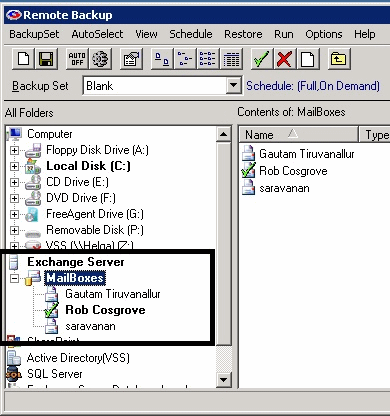
Include the Mailboxes (or Folder Items inside a Mailbox) that you want to backup, and Click Next to schedule and save your preferences.
The Backup Process
Exchange pre-processing is done as part of the Scanning phase during a backup. The first backup of Exchange Data will take more time because it is a Full Backup of the Exchange Mailboxes and other Items that you have selected for backup. Depending on the size of the Exchange Store, it might be better to do the first backup to a local USB drive using the Copy-To-Disk backup option.
During exchange pre-processing the built-in exchange agent issues commands to Exchange Shell to backup (or export) mailboxes to the client’s Temporary Location (default, C:\Temp\Rbackup\Exchange Server\). Once pre-processing is complete the client then prepares the files under the Temp location and transfers them to the server. After backup the temporary files are deleted.
After a full backup subsequent backups are always Incremental. Incremental backups are based on the last backup time stamp of a Mailbox or Exchange Item. So, only new data since the last backup is selected for backup.
Backup Type
It is best to choose ‘Incremental’ backup type for Exchange Server Mailbox level backup. It is not necessary to do the first backup with the “Full” backup type, the first backup as Incremental will always be a Full.
Restore
To restore a complete Exchange Mailbox or Item search for Exchange Items without the ‘Only Most Recent Version’ option selected in the Restore interface.
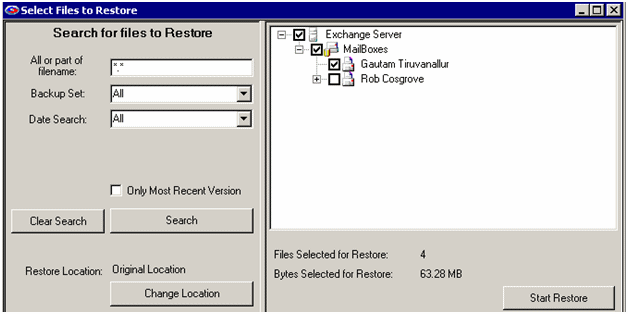
For point-in-time restores use the ‘Date Search’ feature to select data that was backed up on a particular date or before/after or between two dates.
Export to PST Option
Exchange data can be restored back to the Exchange Server OR you can restore it to PST file format. When you click on ‘Start Restore’ you will be prompted to choose between the two.
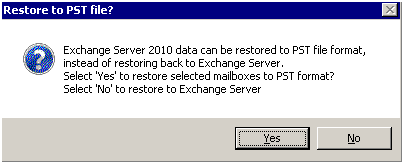
If a redirected path is not already chosen for Restore, on selecting ‘Yes’ to the above dialog you will be prompted for a location for the PST files.
Selecting ‘No’ to the above prompt will restore back to the Exchange Server.
Registry Keys and Options (advanced)
The registry branch for Exchange Server is:
HKEY_LOCAL_MACHINE\SOFTWARE\Wow6432Node\Quantum Tech, Inc.\Remote Backup\Plugins\Exchange Server:
The following are the relevant keys for Exchange Server 2010 Mailbox-level agent:
“ForceFull” – REG_SZ – “True”
(User Editable) Setting this key to True will force the agent to do a full backup of selected Exchange Mailboxes and Items.
“ExcludeItems” – REG_SZ – “Junk E-Mail:Deleted Items”
(User Editable) Use the ‘ExcludeItems’ key to exclude folders globally across all Mailboxes. Separate folder name with a colon. Make sure the names of folder items match exactly (case sensitive) with the names of the folder items in Exchange.
For Troubleshooting Exchange 2010, see Troubleshooting Exchange