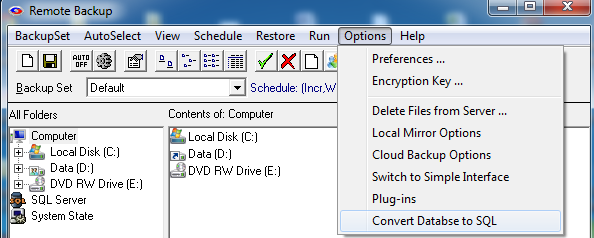
The Options Menu contains choices for Preferences, Encryption Key, Delete Files from Server, and Plug-ins.
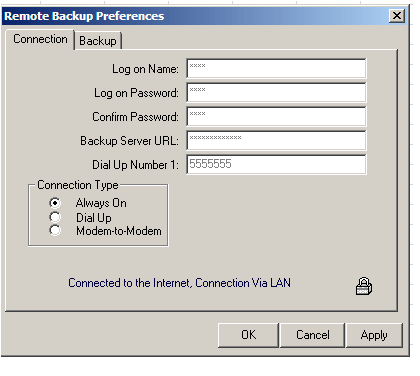 The Preferences menu allows you to change various options of Remote Backup, including your personal information.
The Connection Tab contains information about your connection to the Remote Backup Server. Because of security concerns, it isnt possible to change most of this information. Much of this information was either entered when you registered, or is required by your RBS Service Provider to make a proper connection.
This is where you change your encryption key. The padlock icon  is a special button used for this. For information on how to change your Encryption Key, see the section on Changing Your Encryption Key.
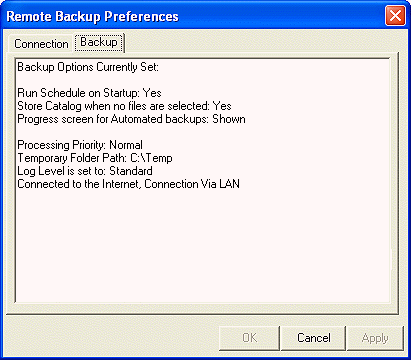
The Backup Tab contains a report of your current settings.
The Encryption Key menu choice allows you to change your encryption key. For more information, see the section on Changing Your Encryption Key.
The Delete Files from Server menu choice allows you to delete your backup files from the RBS Server to save space. For more information, see Deleting Files from the RBS Server.
Local Mirror Options
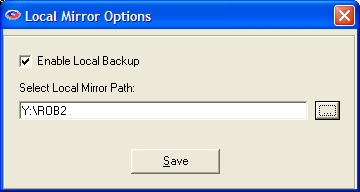
Remote Backup can optionally maintain a mirror of its online storage on a locally attached network drive. When restoring, Remote Backup will first look for files on its local mirror. This makes restores very fast and adds an additional layer of redundancy. Files stored on the local mirror are fully encrypted and compressed to save drive space and increase security.
When you enable the Local Mirror, select the drive and folder for the mirrored storage. Make sure there is plenty of drive space available.
IMPORTANT: When sharing a mirror drive with other users in a network be sure to give each user its own folder on the shared drive.
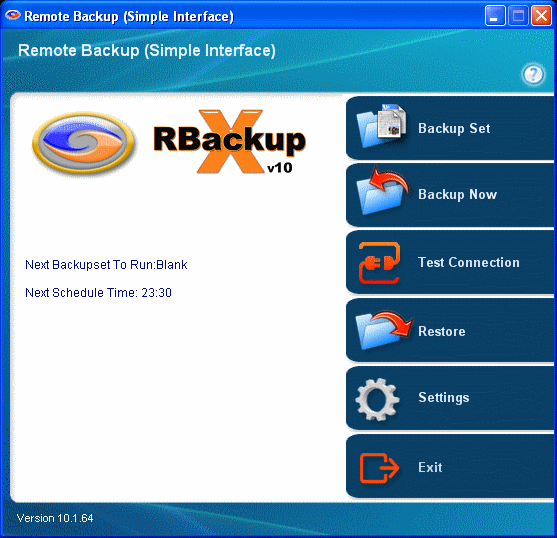
The Switch to Simple Interface choice changes the look and feel of the Remote Backup software. The current User Interface is the Advanced Interface. Selecting this option changes to the Simple Interface.
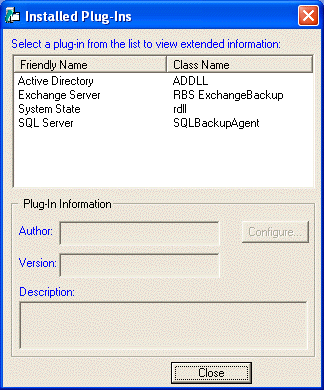
The Plug-ins selection displays the PlugIn Manager, which allows you to configure PlugIns, if you have any that can be configured.
Convert Database to SQL
Use this function to convert your MS Access Catalog file to MS-SQL Server. You should do this if you need to back up more than 100,000 files, or if you want to speed up your backups and restores. Before you use this function you must install MS-SQL Server. Any version will work.
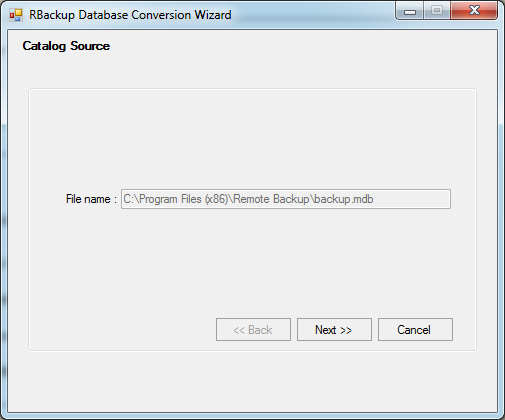
Select the location of your current "backup.mdb" file. The default location will be displayed. Click Next.
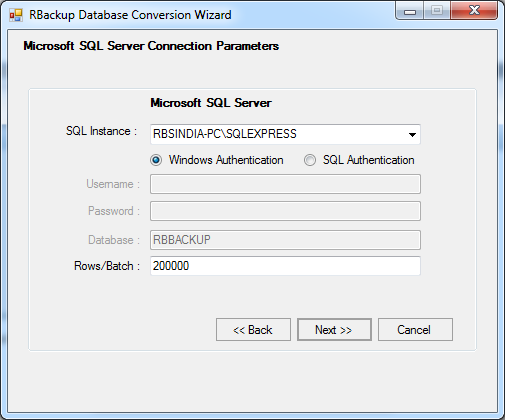
Select the SQL Server you want to use. For Rows/Batch (or Records per Batch) enter the number of records to process per batch. The default is adequate.
Click Next.
The database will be converted to SQL.
If the SQL database becomes too big there is an Administrative feature that can shrink it. This feature is available under the Administrative Interface of the Endpoint software, and is documented in the RBS Server's documentation.