Redirect Restore
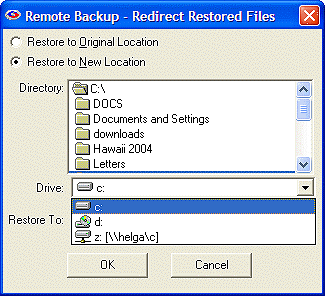 This option lets you redirect the files you are about to restore to a different drive or directory other than their original. This is useful if you want to restore files to a different computer, or to a CD drive for a second backup. Its also useful if you have backed up files from, for example, drive D: on a computer that was stolen, then restore them to a new computer that has only a drive C:.
IMPORTANT NOTE: Backups done using any of RBackup's special purpose agents such as SystemState, Active Directory, Exchange, SQL Server, and SharePointwill not be redirected. Restores of these data will always go to the location determined by the associated service or database server currently running on the target computer. This is typically the original location or the location of the current LIVE service.
You may set Restore to New Location to override the destination of the restored files. Click Create Folders to create the restored files path under the Restore To: folder, or uncheck it to restore files directly to the Restore To: folder.
(CAUTION: If you redirect files without Create Folders checked and the same filename is selected more than once from different backup folders, only one of the files (the last one restored) will be placed in the Restore To: folder.).