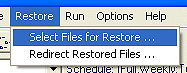
Select this menu choice when you want to restore files. The menu choices allow you to search through all your backed up files and select files to restore. You can also specify a location to redirect your files, in case you want to put them somewhere other than where they came from when they were backed up.
This is the main Restore screen. The left pane contains the file selection criteria. The right pane contains the files you have found in the search. Select files to restore in the right pane. The bottom pane shows the progress and results of your restore operation.
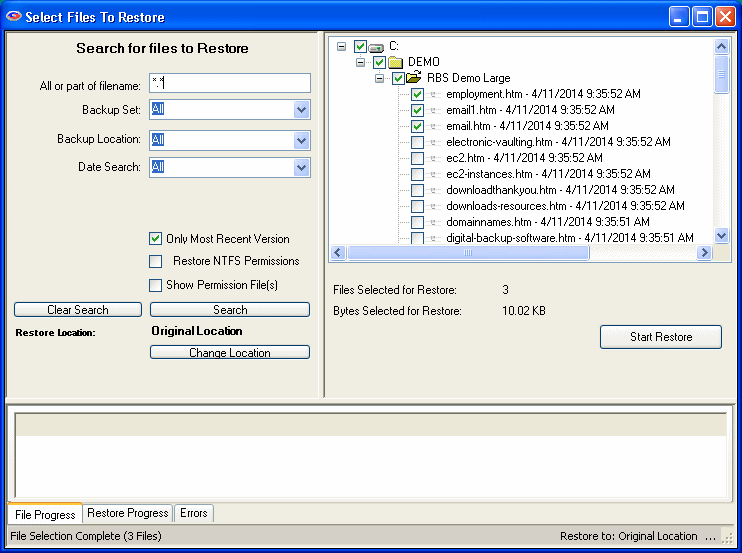
Enter any part of the file name or folder name to search for files, or leave this as *.* to search through all files.
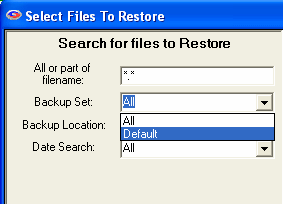
Select which backup set to search though, or select All backup sets.
If you have made backups to multiple locations (Local, Cloud, RBS Server) then you can restore from any location individually. Or, you can select All to have the software automatically search all locations for the most current version of the file(s) you want.
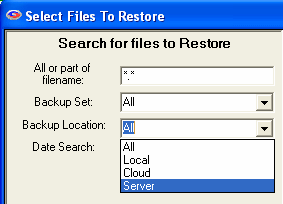
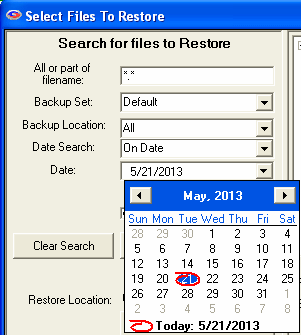
Select OnDate, BeforeDate, AfterDate, BetweenDates, or All.
On Date: Selects files backed up on a date.
Before Date: Selects files backed up before a date.
After Date: Selects files backed up after a date.
Between Dates: Selects files backed up between two dates.
Select the date from a drop-down calendar to use in the search. If you select Between Dates, there will be two Date fields. Note: The calendars will only let you select dates for files that have been backed up.
Selecting this checkbox modifies the search criteria to select only the most recent versions of selected files. This activates Remote Backup's Synthetic Full Restore feature, and it is the default setting. Selecting this checkbox will restore the latest version of all the selected files.
Selecting this checkbox will also restore the NTFS permissions for all the files and folders that have NTFS permissions associated with them. Note that permissions will only be restored if files and/or folders are restored to their original locations on their original computer.
This option is visible when you checkmark "Restore NTFS Permissions." This is useful if you want to restore only the NTFS file permissions, and not the files themselves.
When you have entered your search criteria, press the Search button. The files found in your search will appear in the right pane. You may now enter other search criteria to find more files, which will be added to the right pane.
To clear your search and start over again, press the Clear Search button.
After you have searched for your files, and have selected the ones you want to restore by checkmarking them in the right pane, press the Start Restore button to begin the restoration.
In the left pane, near the bottom, the current Restore Location is listed. The default is Original Locationso the restored files will be placed in the same locations from which they were backed up. To restore to a different location, select the Change Location button to select another location.
Remote Backup will create the original folder structure at the new location and restore your files there.
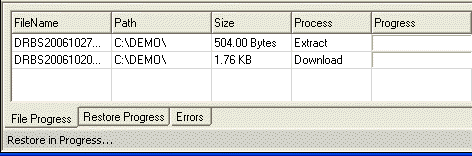
During the restore process you will see this progress screen in the bottom pane.
NOTE: This restorecannot be redirected. Itwill always overwrite existing SystemState.
System State can be restored like any file. Simply select it for restore. After restore, the computer must be rebooted for the restore to take effect.
NOTE: This restorecannot be redirected. Itwill always overwrite existing Active Directory.
Restart the computer in Directory Services Repair Mode.
Start Remote Backup
Restore Active Directory using the Remote Backup Restore interface
Restart the computer in Normal Mode.
VMware VM files are restored just like any other file.
Also See: Mounting Virtual Image (VHD) Files