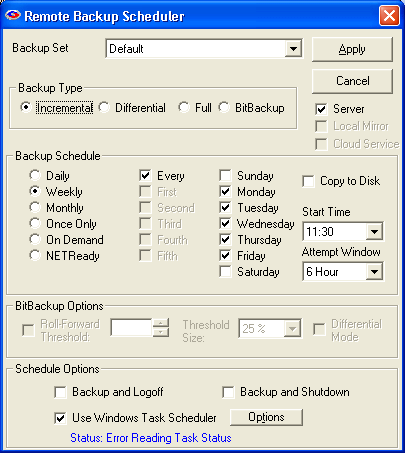
This is where you define the dates and times for your Backup Sets to run. The screen has a pull-down menu that you can use to select your Backup Set. It also contains a box called Backup Type, which is where you select the type of backup you will do. Note: Backup Type selections are an Advanced Feature, and may be turned ON or OFF by the Use Advanced Features checkbox on the Backup tab of the Options:Preferences menu.
Files will be backed up which have been modified since the last backup. Then, after they are backed up, the files will be marked on the disk as having been backed up. This is the default and most widely-used way to back up data files.
Files will be backed up which have been modified since the last backup, the same as Incremental. However, after the files are backed up, they will not be marked as having been backed up. The reason for this option is in case you also want to do tape backups as well as Remote Backups. Your tape backup software relies on the marks placed on the files to determine which files need to be backed up. So, you don't want to remove them with your Remote Backup.
Files will be backed up regardless of whether they have been changed since their last backup. This is the least-used option because it results in the largest Backup Sets and longest on-line times.
Only the parts of files that have changed will be backed up. This option creates sub-file or "patch" backups. This creates the smallest backups that take the least amount of time. See How BitBackup Works for more information.
Select the location for this backup. You can select from Server, Local Mirror, and/or Cloud Backup. You can select any or all of these. Backups will be sent simultaneously to the selected locations.
Server - The backup will be sent to the RBS Server.
Local Mirror - The backup will be sent to the Local Mirror location as defined in Options : Local Mirror Options.
Cloud Service - The backup will be sent to a drive or folder mapped to a Cloud service like Google Drive or DropBox as defined in Options : Cloud Backup Options.
There is also a box labeled Backup Schedule. Here you can select different schedule types.
Selecting this option will launch a backup every day, seven days a week.
This schedule lets you select which days of the week to do a backup. You can select to do a backup every Monday, Thursday, and Saturday.
On this schedule you can select the first, second, third, fourth or fifth of any day of the week. Here are some examples: You can pick the first and third Wednesdays of each month. You can select the second Tuesday and Thursdays. There are a lot of possible schedules you can use here.
This schedule will launch a single backup session, one time only, on a specified date you can pick from a pull-down menu containing a calendar.
Pick this selection if you want this backup set to be launched On Demand only - not through the scheduler. You can then launch this backup set through the Run Now option on the Run Menu.
The NetReady schedule type is used mostly for laptops that are not always connected to the Internet. Selecting this option will cause backups to start as soon as an Internet connection is acquired.
Select this option if you want this backup to do a Copy to Disk operation instead of a normal Remote Backup.
For each of these schedules you can select a Start Time and an Attempt Window. Please be aware the Start Time is on a 24-hour schedule, and that anything after midnight is the next day. What this means is that if you want to back up Friday's work, and you want the backup session to take place after midnight, you should select a time early in the morning of Saturday, not Friday.
The Attempt Window is the number of hours Remote Backup will attempt to perform the backup. Selecting a start time of, for example, 1:00am will not necessarily cause the backup session to start at 1:00am, although it might. Remote Backup might not be able to perform a backup for a variety of reasons - the Server is too busy, files are locked, the computer is not turned on.
In the event that Remote Backup cannot perform a backup at the selected Start Time, it will attempt the backup session some time during the next period of time determined by the number of hours you select here.
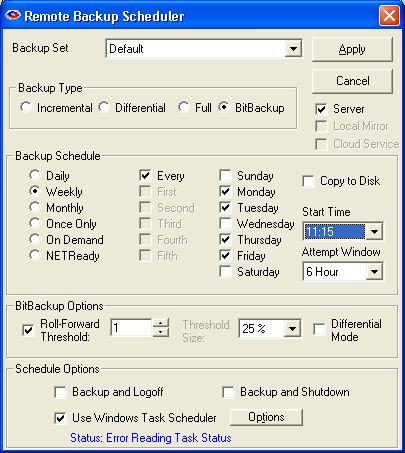 BitBackup is a special kind of backup that backs up only the changed parts of files instead of the full files. It is sometimes called "sub-file" backup or "patch" backup. BitBackup is especially useful for very large files when only small parts of the files change between backups.
For a complete explanation of how BitBackup works, see the section on How BitBackup Works.
For example, if only a five-character word changes in a 2 megabyte document, BitBackup will back up only five characters. This can save large amounts of storage space on the Server, and it can significantly speed up the time needed to do a backup.
BitBackup always backs up a full file the first time. Thereafter, it backs up only the changed parts of the file. Each of the BitBackup backups sent after a full backup can restore the file up to the point in time when that backup was done, called cumulative backups. So, as time goes on, BitBackup archives become larger as they contain more changes.
Periodically, BitBackup needs to reset - a process called Roll-Forward. To do this, Remote Backup sends the full file again, and then resets BitBackups, which reduces their file size back to the minimum. This process cycles according to the settings at the bottom of this screen.
This is the number of BitBackups that will be done before Remote Backup resends the full file again.
The percentage of BitBackup size to full-file size. In the example on this screen, when the size of the most recent BitBackup archive exceeds 50% of the size of the full file, Remote Backup will perform a Roll-Forward, resending the full file. Using the Threshold Size feature instead of the Roll-Forward Threshold setting takes more time during preparation of a backup, because Remote Backup needs make a BitBackup archive to compare its size to the full file.
Select this checkbox to have BitBackup backups act like normal Differential backups. Files will be backed up which have been modified since the last backup, which is the normal way BitBackup works. However, after the files are backed up, they will not be marked as having been backed up. The reason for this option is in case you also want to do tape backups as well as Remote Backups. Your tape backup software relies on the marks placed on the files to determine which files need to be backed up. So, you don't want to remove them with your Remote Backup.
Select this box to have Remote Backup log off the currently logged-in user after a backup is completed.
Select this box to have Remote Backup completely shut down the computer after a backup is completed.
Select this checkbox to use the Windows Task Scheduler to launch this backup set instead of using Remote Backup's built-in scheduler. Some applications have the potential to interfere with Remote Backup's built-in scheduler, especially when Remote Backup is running in Service Mode. It is generally considered more reliable for wide-scale distributions to use the Windows Task Scheduler.
The Full Image Backup backup set is used to back up an entire disk image. In this first version it is limited to On Demand, and cannot be scheduled.
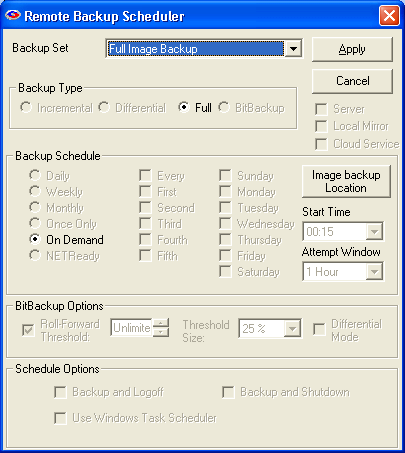
Click the Image backup Location button to specify the location for the drive image. Make sure there is enough space on the Image backup Location to hold the entire size of the drive you want to back up.