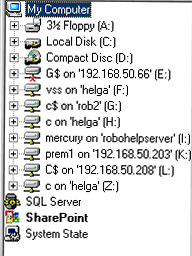
Remote Backup uses the SharePoint built-in Staadm command-line tool to backup and restore SharePoint items. If a version of SharePoint is installed in the local machine, and the SharePoint PlugIn is activated, the SharePoint node is displayed in the All Folders window.
To backup all SharePoint web applications, right click on the SharePoint node and include it.
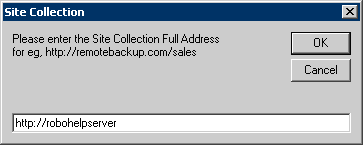
You can also back up individual SharePoint Site Collections. To do that first add the Site Collection to the list. Right Click on the SharePoint node, select "Add Site Collection" and enter the full URL for the Site Collection. You can back up an individual Site Collection by including it. This applies to all versions of SharePoint except Windows SharePoint Services 2.0(WSS 2.0).
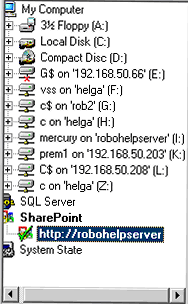
With WSS 2.0, backing up the entire web application is not an option. Only Site Collections can be backed up. You can add as many Site Collections as you want and back them up individually.
The first time you select SharePoint you will be asked for the SharePoint full URL and it will be automatically added for you as one of the Site Collections. You cannot include the SharePoint node because of this limitation with the Stsadm tool in WSS 2.0.
The Windows account used to run the client software must be a member of the Administrators group on the local machine, as well as a member of the dbowner fixed database role in the SQL Server.
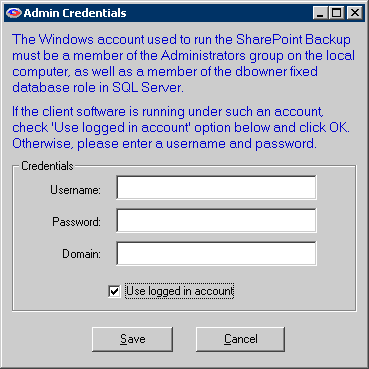
If the client software is not running on such an account, right click on the SharePoint node, select Set Admin Credentials and enter a Windows account that is part of the mentioned groups.
NOTE: This restorecannot be redirected. Itwill always overwrite existing Site Collection contents.
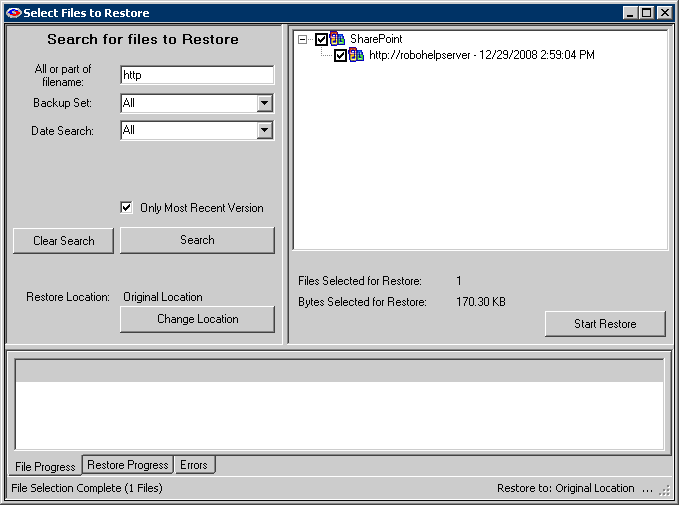
To restore SharePoint items, the SharePoint Stsadm command-line tool has to be installed on the local machine. SharePoint Site Collections can be restored like normal files. Check the Site Collection to restore and start the restore process.
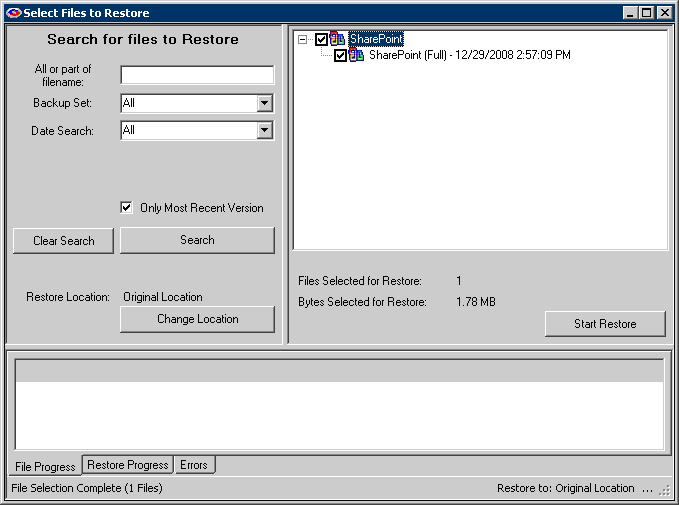
The entire web application is displayed as "SharePoint (Full)" in the restore interface. When you check the "SharePoint (Full)" node to restore, you will be asked if you want to restore the contents and settings to the original location. Select No if you want to restore the contents to a new server.
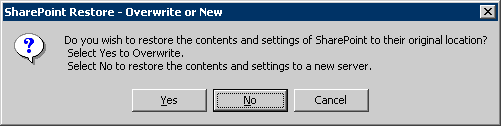
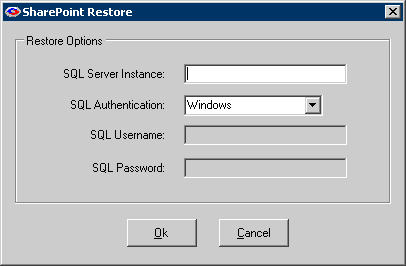
Now you will be asked for the SQL Server instance name and login credentials for the instance. Enter the information, click OK and start the restore process.