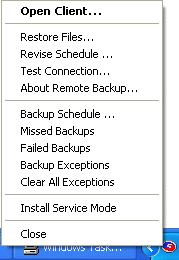
When Remote Backup is running, it normally hides in the System Tray. Right-Click the icon to display the System Tray Menu.
If there has been a missed backup or a failed backup recently, the System Tray icon will contain a yellow flashing exclamation mark. 
From this menu you can open the client interface, restore files, edit schedules, test the connection with the RBS Server, view upcoming backup schedules, view failed backups (if any), view missed backups (if any), view backup exceptions (if any), view and install Remote Backup as a System Service.
The above example shows an unlikely case - a System Tray Menu with all options available, indicating a Remote Backup client with a lot of trouble.
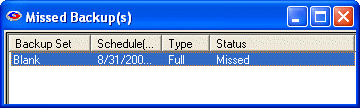
The system tray icon will indicate if you have missed a scheduled backup. To view details, select the Missed Backups menu choice. The following screen will display.
After viewing the list of Missed Backups, you can close this window. The Missed Backups menu option will disappear.
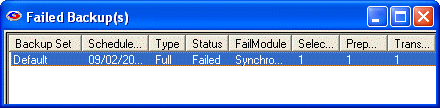
The system tray icon will indicate if one of your backups has failed to complete. To view details, select the Failed Backups menu choice. The following screen will display.
You can view the complete logs of any of the failed backups by double-clicking the backup from the list.
After viewing the list of Failed Backups, you can close this window. The Failed Backups menu option will disappear.
Backup Exceptions are "problems" that happened during a backup, but which did not stop the backup from completing. Common exceptions include skipping files that were locked by another application, which Remote Backup could not back up. (Remote Backup will back up most - but not all - open files.)
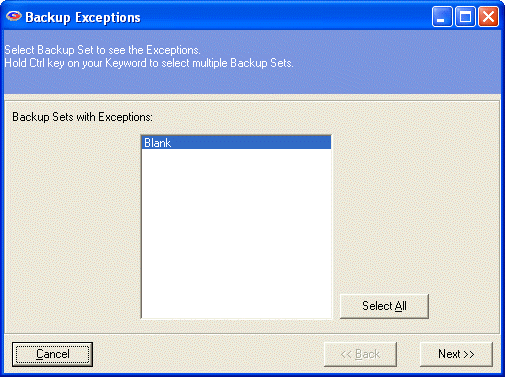
This menu shows all the Backup Sets that have run, and which contain exceptions. Select the Backup Set you want to view, and click the Next button.
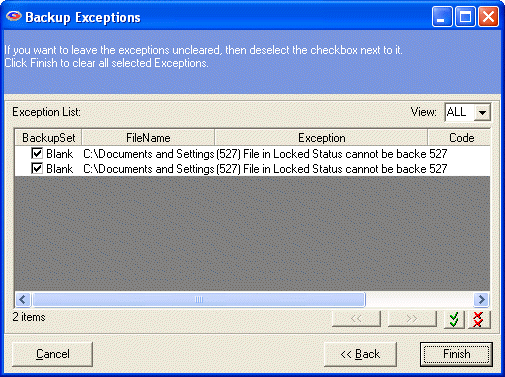
This screen shows all the exceptions that happened, and a reason for the exception. To clear the exceptions from this report, checkmark them and click the Finish button.